
Apple Watch App
Sync Error 1001, 1002, or 1003 on Welldo Apple Watch App
If you see Error 1001, 1002, or 1003 after tapping Sync in the Welldo Apple Watch app
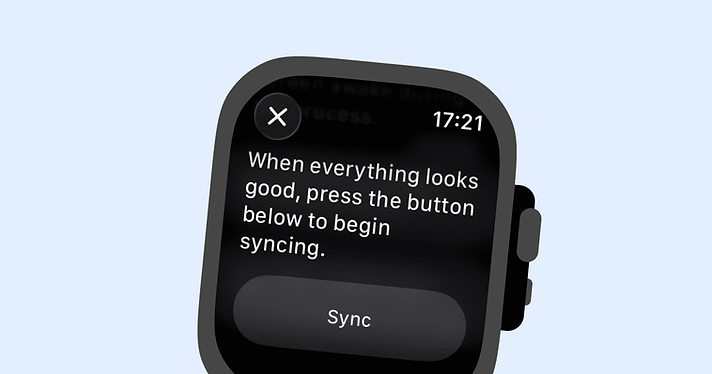
If you see Error 1001, 1002, or 1003 after tapping Sync in the Welldo Apple Watch app, it usually means the required health data couldn't be transferred or your Apple Watch wasn't able to communicate with the iPhone app.
Error 1001
WHAT IT MEANS
Welldo was only able to retrieve part of the health data needed for synchronization. For example, your Apple Watch may have recorded Heart Rate Variability (HRV), but your Resting Heart Rate (RHR) baseline hasn't been calculated yet.
Both values are required before Welldo can complete the sync.
HOW TO FIX IT
• Continue wearing your Apple Watch as usual.
• Give your watch more time to collect enough health data.
• Try syncing again later.
Once both your HRV and RHR baseline are available, synchronization should complete successfully.
Error 1002 or 1003
WHAT IT MEANS
Your Apple Watch couldn't communicate with the Welldo app on your iPhone, or the required data wasn't available during the sync.
This most commonly happens when the iPhone app isn't running.
HOW TO FIX IT
1. Open the Welldo app on your iPhone.
2. Open the Welldo app on your Apple Watch.
3. Keep both apps open at the same time.
4. Tap Sync again on your Apple Watch.
Keeping both apps open allows them to establish a connection and transfer the latest health data.
Still Seeing the Error?
If the problem continues:
• Make sure your iPhone and Apple Watch are connected.
• Verify that Bluetooth and Wi-Fi are enabled on both devices.
• Restart both your iPhone and Apple Watch.
• Try syncing again with both Welldo apps open.
If the error still persists after following these steps, please contact the Welldo support team with the error code you received so we can help investigate the issue.